Google Business Profile Video Verification: A Practical UK Business Checklist
Being asked to record a video can be unsettling if you were expecting a postcard or a phone code. Google Business Profile video verification is simply a way for Google to see that your business is real, where you say it is, and that you are the person managing it.
Short answer: For video verification, Google generally wants one continuous, unedited recording of at least 30 seconds, made live from a mobile device. It should show your location, evidence the business exists such as signage or tools, and proof that you manage it. Planning the route and props before you record usually makes the process much smoother.
What is Google Business Profile video verification?
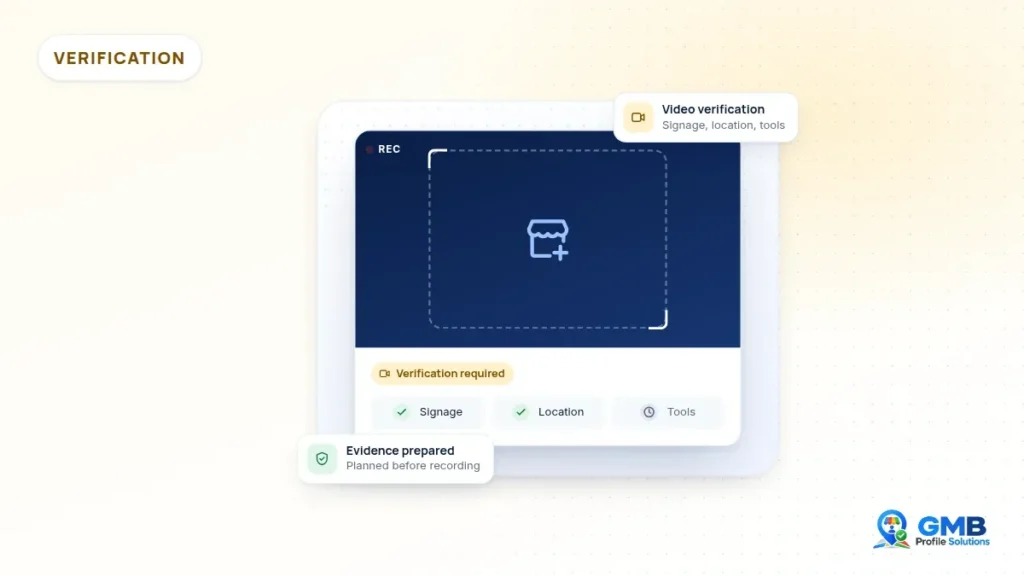
Video verification is one of the methods Google may offer to confirm that a business is genuine and eligible for a profile. You record a short video in the Business Profile interface on your phone and submit it for review.
You do not usually get to choose it. Google’s help page on verifying your business says verification methods are determined automatically and cannot be changed, based on factors such as business type, location and available information. It can apply to a brand new profile, a profile that has been edited, or one Google has asked to reverify.
If you are setting up a profile for the first time, our new Google Business Profile support page explains how we help businesses prepare.
Video recording or live video call?
Google’s help pages describe two video based options. A video recording is something you film yourself and upload for review. A live video call, where offered, means showing similar evidence to a Google support representative in real time.
The evidence is broadly the same for both: your location, your business and proof that you manage it. The main difference is that a recording lets you plan and film at a time that suits you, while a live call needs you to be ready to show everything on the spot. This guide focuses on the recorded video, but the same preparation helps with either.
Why might Google ask you to verify again?
Some businesses are surprised to be asked for a video after their profile has been live for years. Google’s help page explains that when business details are edited, Google may ask for more information or for the profile to be verified again. Changes to the name, address or category are the most likely to lead to this, so it is worth making those edits carefully and only when they reflect a genuine change to the business.
What does Google want to see in the video?
Google’s video verification guidance groups the requirements into three broad areas: location, the business itself and proof of management. A good video covers all three in one smooth recording.
Your location
Start outside and show things that tie you to the address or area on your profile. Google gives examples such as street signs, building numbers, nearby businesses and landmarks. A slow pan that connects the street name to your door is often more helpful than a quick glimpse.
Evidence the business exists
For storefront businesses this is usually permanent signage showing the business name. Google refers to a name clearly printed on a permanent fixture. For service businesses, it may be the professional tools and equipment you use to do the work, such as a signwritten van or specialist kit.
Proof that you manage the business
This is where you show something only an owner or employee could access. Google’s examples include opening a till, entering a kitchen or storage room, or performing the service you offer. Unlocking the premises, opening a branded work vehicle or showing your stock room could all fit here.
How does video verification differ for storefront and service-area businesses?
The principles are the same, but the evidence looks different. A storefront business can rely on its premises and signage, while a service-area business usually relies on its location identifiers, vehicle and equipment.
| What to show | Storefront or hybrid business | Service-area business |
|---|---|---|
| Location | Street sign, building number, neighbouring shops | Street signs and landmarks near where you are based |
| Business exists | Permanent signage matching the profile name | Branded vehicle, professional tools and equipment |
| Management | Unlocking the door, opening the till or back office | Unlocking the van, showing tools, starting a task |
For home-based service businesses, Google suggests recording landmarks and signs in your immediate neighbourhood rather than the inside of your home. You do not need to film private rooms, and Google asks that videos do not include sensitive personal information or other people’s faces.
How should you prepare signage, tools and business evidence?
Preparation is mostly about consistency. The name, location and type of business in the video should match what is on the profile.
- Signage: check that permanent signage shows the same name as the profile. A temporary banner or a printed sheet in the window is unlikely to carry the same weight.
- Vehicle: if you use a signwritten van, make sure it is clean, visible and parked somewhere you can film it clearly.
- Tools and equipment: lay out the kit that proves what you do, such as a pipe threader for a plumber, a multifunction tester for an electrician or commercial cleaning equipment for a cleaning company.
- Business documents: have something ready that links you to the business, such as a business letter or invoice. Take care not to show bank details, full account numbers or other sensitive data on camera.
If the profile name does not match your real signage, fix that first. A mismatch is one of the most common reasons a video struggles.
The same applies to your category and hours. If your profile says you are a bakery open seven days a week, but the video shows a closed unit with no signage on a weekday afternoon, the reviewer is left with conflicting information. Record during hours when the business is operating, where you can, and make sure the category describes what the business actually does.
If you share premises with another business, make sure it is clear which part is yours. Your own signage, entrance, desk or storage area should be easy to identify, so the reviewer is not left guessing which business the video relates to.
What is a practical checklist before you press record?
Walk the route once without recording. It is much easier to keep a continuous shot when you already know where you are going.
- Confirm the profile name, address or service area and category are accurate.
- Charge your phone and check you have a stable data connection.
- Record in daylight where possible, so signs and numbers are readable.
- Plan to start at a street sign or landmark and move towards the business.
- Show permanent signage, or your branded vehicle and tools.
- Show one or two things only someone managing the business could access.
- Keep going without stopping, cutting or editing for at least 30 seconds.
- Move slowly and hold the camera steady on anything you want reviewed.
What are the most common video verification mistakes?
Most failed videos fall short on clarity or consistency, rather than because the business is not genuine. The same handful of issues tends to come up.
- Stopping and restarting, or submitting a recording that has been edited
- Uploading an old clip instead of recording live in the app, which Google does not accept
- Filming only the inside of a room with nothing linking it to the address or area
- Signage or vehicle branding that shows a different name from the profile
- Moving too fast, so street signs and numbers are blurred
- Filming customers, staff or passers by in a way that shows their faces
- Recording at night or in poor light so key details cannot be read
What happens after you submit your video?
After submission, the video goes to Google for review and you wait for a result. Google’s help page currently says this can take up to five business days, although some reviews may take longer depending on the circumstances.
During that time, it is sensible to avoid editing key details such as the business name, address or category, as changes can lead to further review. You will usually see either a verified status or a message explaining that the submission was not accepted. Google also says you can delete a verification video at any time.
What should you do if video verification fails?
If verification is not successful, read the reason Google gives before recording again. Google explains that you may be able to review the issues and resubmit, or try another method if one is offered.
Treat the feedback as a checklist. If the location was unclear, start further back and include more street identifiers. If the business evidence was weak, look again at signage, branding and equipment. If there is a deeper mismatch between the profile and the real business, that needs fixing first, otherwise another video is likely to meet the same problem.
If you are stuck after several attempts, our Google Business Profile verification support can help you work out what may be going wrong. For businesses adding a second site, see our new location support page.
Get a second pair of eyes
If your Google Business Profile video verification has failed, or you would like a check before you record, GMB Profile Solutions offers an independent, free case review. We are not Google and cannot promise verification, but we can review your profile details and planned evidence and explain what may help. You can contact us here to start.
Frequently asked questions
Can I choose video verification instead of a postcard?
Usually not. Google's help page says verification methods are determined automatically and cannot be changed. The options you see depend on factors such as your business type, location and the information Google has. If video is the only option shown, it is generally best to prepare carefully and complete it rather than waiting for another method to appear.
How long should a Google Business Profile verification video be?
Google currently asks for a recording of at least 30 seconds that is unedited, complete and made without breaks. There is no benefit in rushing. A slightly longer, steady video that clearly shows your location, business evidence and proof of management is generally more useful than a short clip that skips key details.
What if I run my business from home?
If you are a service-area business based at home, Google suggests recording landmarks and signs in your immediate neighbourhood, along with the tools, equipment or branded vehicle you use for work. You do not need to film private rooms. Take care not to show sensitive personal information or other people's faces during the recording.
Can I resubmit if my verification video is rejected?
Google explains that you may be able to review the issues it identified and resubmit, or try another verification method if one is available. Read the reason carefully first. If the problem is unclear signage or location, a better planned video may help. If the profile details do not match the real business, those should be corrected before trying again.
Sources and further reading
This guide is general information, not legal advice. Google's policies and processes change, and outcomes are decided by Google. GMB Profile Solutions is an independent service provider and is not affiliated with, endorsed by, or part of Google LLC.